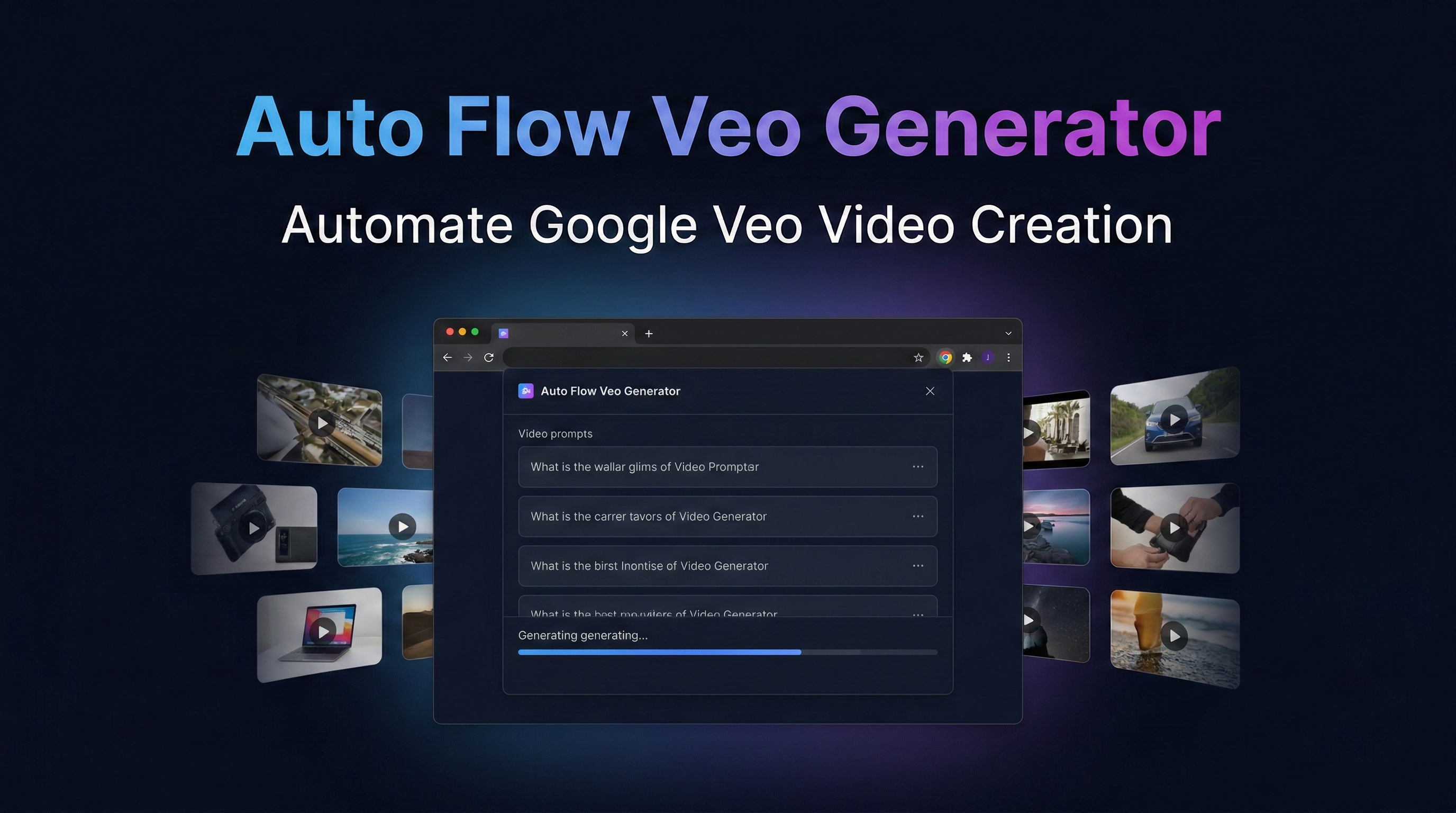
Submit multiple prompts at once, auto-download videos, and track progress. Stop waiting — let the extension do the work while you focus on creating.
Automate your entire Veo Flow workflow in one click
Submit dozens of prompts at once. Paste your prompt list, click Start, and walk away. Each prompt runs automatically one after another.
Videos are downloaded automatically as soon as they finish generating. Choose quality: 720p, 1080p, 4K, or GIF.
Real-time progress bar, elapsed time, success/fail counts. See exactly where your batch is at all times.
Some prompts fail? One click to retry all failed prompts. Copy failed prompts to clipboard for editing.
Choose 16:9 landscape or 9:16 portrait before generation. Perfect for YouTube, TikTok, Reels, or Shorts.
Clean side panel that stays open alongside Veo Flow. Control everything without switching tabs.
3 simple steps to automate your video generation
Add the Chrome extension and open Google Veo Flow. The side panel appears automatically.
Enter your video prompts (one per block, separated by blank lines). Import from .txt file or type directly.
Choose "Create New Project" or "Run on This Page" and watch the automation run. Videos download automatically.
No coding required. Just download, unzip, and load.
Install from Chrome Web Store · 30 prompts/day · No account needed
Or download the .zip file for manual install
Right-click the downloaded auto-flow-veo-generator.zip file and select "Extract All" (Windows) or double-click to unzip (Mac). You'll get a folder with the extension files inside.
Open Google Chrome and type chrome://extensions in the address bar, then press Enter.
Find the "Developer mode" toggle in the top-right corner of the page and switch it ON.
Click the "Load unpacked" button (top-left), then select the unzipped folder you extracted in Step 1. That's it!
Go to labs.google/fx/tools/flow and click the extension icon in your toolbar. The side panel will open — paste your prompts and hit Start!
Start free or go Pro for the ultimate experience
Got questions? We've got answers.
1. Install from the Chrome Web Store or download the .zip file (free version).
2. Open Chrome and go to chrome://extensions
3. Enable "Developer mode" (toggle in top right)
4. Click "Load unpacked" and select the extracted extension folder
5. Navigate to labs.google/fx/tools/flow and click the extension icon to open the side panel
Yes! This extension is specifically built for Google Veo Flow (labs.google/fx/tools/flow). You need a Google account with access to Veo Flow to use it.
Everything is free right now! All features are unlocked with unlimited prompts — no payment, no license key needed.
No license needed! All features are currently free and unlimited. Just install the extension and start using it.
You can choose from: 720p Original (default), 1080p Upscaled, 4K, or 270p GIF. The quality setting applies to all auto-downloaded videos in your batch.
Yes! Before starting your batch, choose 16:9 Landscape (great for YouTube) or 9:16 Portrait (great for TikTok, Reels, Shorts). The extension will set the correct aspect ratio automatically.
Failed prompts are tracked separately. After your batch completes, you can see all failed prompts, copy them to clipboard for editing, or click "Retry Failed" to run them again automatically.
Absolutely. The extension runs entirely in your browser. It does NOT collect your Google credentials, does NOT send data to any external server, and does NOT access anything outside the Veo Flow page. Your account stays private and secure.
Yes. If the extension doesn't work for you, contact us within 30 days of purchase at manager@dayai.ai and we'll issue a full refund. No questions asked.
Yes! You can install it directly from the Chrome Web Store. You can also download the .zip file for manual installation if you prefer.
100% free — unlimited prompts, no credit card required.
Questions? Email us at manager@dayai.ai